Migrating from WordPress to ULTRV
Upload the export file, or point ULTRV at the live site and skip the file entirely.
WordPress is the one platform here that gives you two clean ways out. It has a proper export format, and it has a REST API that is switched on by default. ULTRV reads both. If your site is still up, the API route is less fiddly: nothing to download, nothing to upload, and pages come across alongside posts.
Route one: the export file
In WordPress admin, go to Tools → Export, leave the
filter on All content, and press
Download Export File. You get a single
.xml file — WordPress calls the format
WXR, WordPress eXtended RSS. It holds your posts, pages, custom post
types, comments, custom fields, categories, tags, custom taxonomies,
and users. It does not hold your media files, only links to them.
(Path checked August 2026 against the WordPress documentation.)
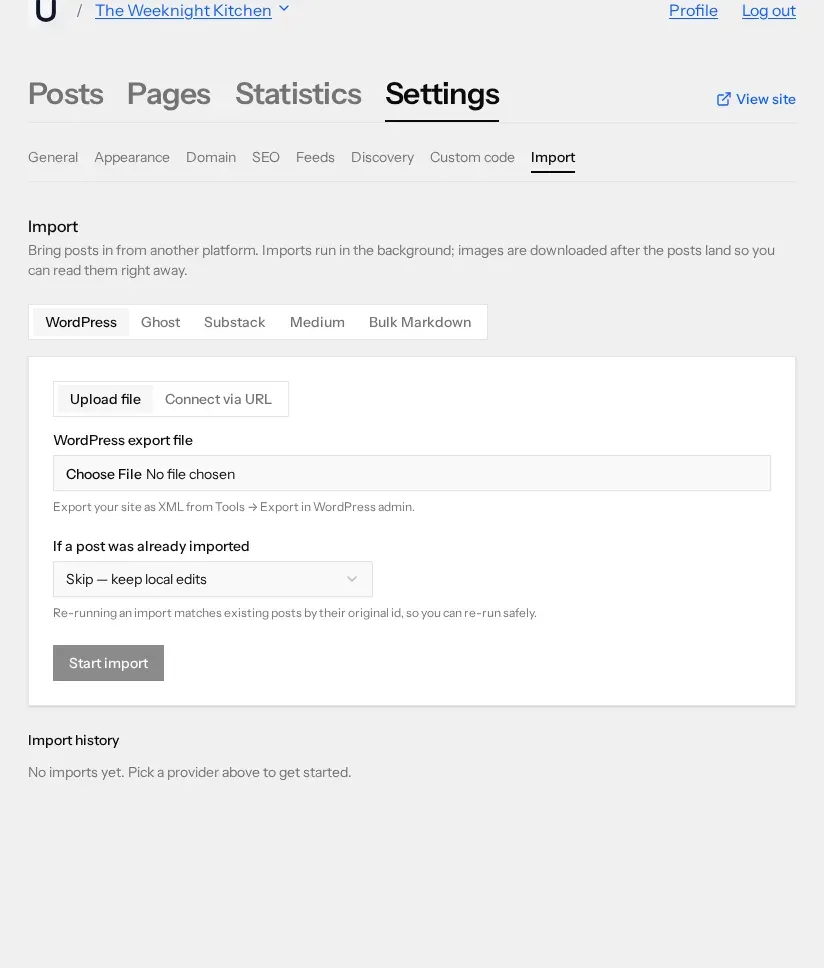
Then in ULTRV, open your blog's Settings → Import, stay on the WordPress tab, keep Upload file selected, and choose the XML. Uploads are capped at 50 MB, which a WXR file almost never reaches — if yours does, the Export screen's date-range filter lets you split the archive into several files and import them one after another.
Route two: connect to the live site
Switch to Connect via URL and fill in three fields. Site URL is the base address of your WordPress site, no trailing path. Username is your WordPress login. For Application password, generate one in WordPress under Users → Profile → Application Passwords — it is a per-application credential you can revoke afterwards, and it is not your account password.
ULTRV then walks the REST API, a hundred items at a time, until it has every post and every page. The credentials you entered are wiped from storage 24 hours after the import finishes; you can revoke the application password on the WordPress side as soon as the history says the import is complete.
What maps, and what does not
Both routes bring across:
- Posts and pages. WordPress pages land as ULTRV pages, posts as posts.
- Titles, slugs, and body content. The original slug is reused, so URLs keep their readable half.
- Excerpts. The hand-written excerpt, where the post has one.
- Draft or published status, and the publication date. Anything not published in WordPress arrives as a draft in ULTRV.
- Featured images and inline images. Fetched from their original URLs and re-hosted.
- Tags. From the export file, both tags and categories become ULTRV tags, with "Uncategorized" dropped. Over the REST API, tags only.
What stays behind:
- Comments, users, and authorship. Every imported post belongs to your ULTRV account.
- Custom fields, custom post types, and custom taxonomies. Only posts and pages are read.
- Menus, widgets, sidebars, themes, and plugins. ULTRV has 84 themes and no plugin system; the look is chosen, not migrated.
- Tables and embeds. Imported HTML is sanitised to headings, paragraphs, lists, links, images, blockquotes, code, and emphasis. A post built around a table or a YouTube embed needs rebuilding by hand.
- Redirects, SEO plugin settings, and analytics history.
After the import
The import history shows how many posts and pages landed and lists any item that errored. Four things are worth checking by hand:
- Your longest post, and your most recent one. If the body survived intact in both, the rest almost certainly did.
- Any post built on a Gutenberg block that is not really text — galleries, tables, embeds, accordions. These are the ones sanitising thins out.
- The tag list, which is now the union of your WordPress tags and categories and is usually longer than you expect.
- Images, after a few minutes. They are fetched in the background, so a post can be readable before its pictures have arrived.
If it looks wrong, roll the batch back from the import history — that removes the posts, pages, images, and tags the import created, and nothing else — then fix the source and run it again.
Your old URLs
WordPress's default permalink is
/2024/03/on-lichen/. ULTRV has no
date segment: the same post becomes
/on-lichen, under
yourblog.ultrv.blog or under your own
domain once you point one at the blog.
ULTRV does not serve redirects for the old paths, so if you are keeping
the domain, set a redirect rule on it before you switch the DNS. If you
are on a wordpress.com subdomain, those URLs were never yours and you
will lose them — announce the move in a final post while the old site
is still up.
Frequently asked questions
Do I need the WordPress export file, or can ULTRV read my site directly?
Either works. Connect via URL uses the WordPress REST API and needs no export file at all — enter your site URL, your username, and an application password. Upload file takes the XML that Tools → Export produces. The URL route is easier if your site is live and reachable; the file route is the only option if the site is already down.
Do my images come across from WordPress?
Yes, but by download rather than by copy. A WordPress export file contains links to your media, not the media itself. ULTRV fetches each featured image and each inline image from its original URL, stores its own copy, and rewrites the link in the post. Keep the old site online until the import finishes, or there is nothing to fetch.
What about my WordPress URLs and SEO?
ULTRV serves posts at the top level, so a post at /2024/03/on-lichen/ becomes /on-lichen. The slug is reused from the export and can be edited per post afterwards. ULTRV does not serve redirects for your old paths. If you keep the old domain, set the redirects there; that is what preserves the links people have already shared.
Do comments come across?
No. The export file contains your comments, but ULTRV does not import them and has no comment system to put them in. If the discussion matters to you, keep a copy of the export file — it is plain XML and stays readable.
Can I run the import twice?
Yes. Every imported post is stamped with its WordPress post id, so a second run recognises what it already brought over. Choose Skip — keep local edits to leave your rewrites alone, or Update — overwrite with source to pull the current version down again.
Still deciding? The WordPress alternative comparison is the argument rather than the instructions, including the parts where WordPress wins. The features page is what you would be moving to.
Free, no credit card. Make a blank blog, import into it, and leave WordPress running until you have read the result.