Move your blog to ULTRV
Five importers, one screen, and a rollback button if it goes wrong.
Leaving a platform is mostly a file-handling problem. You ask the old platform for your writing, it gives you an archive, and something on the other end has to read it. ULTRV ships five connectors that do the reading: WordPress, Ghost, Substack, Medium, and a bulk Markdown importer for everything else. Two of them can also skip the archive entirely and pull from a live site over its API. This page covers what is true of every import; each connector then has its own guide with the exact export steps and the field-by-field mapping.
How a migration goes
- Get the archive out of the old platform, or find its API credentials.
- Create a blog on ULTRV. A blank one — the import fills it.
- Open Settings → Import, pick the tab for your platform, and upload the file or enter the site URL.
- Choose what should happen if a post was already imported, then press Start import.
- Watch the import history. It polls while the job runs and tells you how many posts and pages have landed.
- Read through what arrived, fix anything the old platform mangled, and point your domain at the new blog.
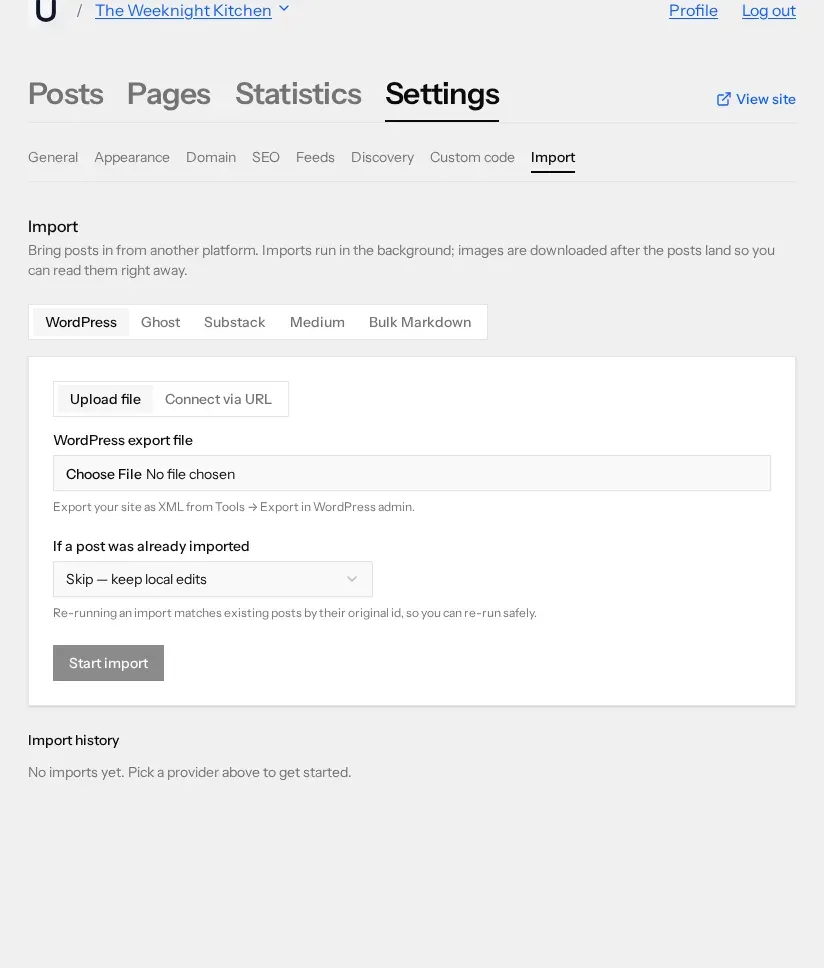
Imports run in the background, so you can close the tab. Images are fetched after the posts land, which means the writing is readable immediately and the pictures fill in over the next few minutes. One import runs per blog at a time; start a second while the first is going and ULTRV tells you to wait.
The five connectors
- Migrating from WordPress — Upload the XML export from Tools → Export, or connect straight to a live site over the REST API. Posts and pages both come across.
- Migrating from Substack — Upload the zip from Settings → Exports. Titles, subtitles, dates, and post bodies land as posts; the subscriber list is ignored.
- Migrating from Ghost — Upload the JSON export, or connect with an Admin API key. Posts, pages, tags, and feature images all carry over.
- Migrating from Medium — Upload the archive Medium emails you. Published stories and drafts both land, drafts as drafts.
- Migrating from Bulk Markdown — A zip of .md files from Hugo, Jekyll, Astro, Obsidian, Bear Blog, or anywhere else. Front matter is read if it is there.
There is no connector for Bear Blog, Mataroa, Micro.blog, or Pika. If you are coming from one of those, export your posts as Markdown and use the bulk Markdown importer, which is the same route Hugo and Jekyll users take.
What comes across
Every connector normalises its source into the same shape, so this much is common to all five: the title, the slug, the body, whether the item was published or a draft, and the publication date. Excerpts, tags, featured images, and static pages come across on the connectors whose source format carries them — the per-platform guides say which.
Images are handled by downloading them. No export format in this list contains your image files; they all contain URLs pointing back at the platform you are leaving. ULTRV fetches each one, stores its own copy, and rewrites the link in the post. The practical consequence: keep the old site online until the import has finished, or the pictures have nowhere to come from.
What does not come across
Comments, subscribers, email lists, paid memberships, billing, themes, plugins, and analytics history stay behind on every platform. Imported HTML is also sanitised on the way in: headings, paragraphs, lists, links, images, blockquotes, code blocks, and inline emphasis are kept, while tables and embedded iframes — YouTube, Twitter, CodePen — are not in the allowed set and get dropped. If your archive leans on embeds, expect to rebuild those few posts by hand.
What happens to your URLs
ULTRV puts posts at the top level of the blog:
yourblog.ultrv.blog/post-slug, or
yourdomain.com/post-slug once you
point a custom domain at it.
There is no date in the path and no category prefix. Each importer
reuses the original slug where the export contains one, so a post at
/2024/03/on-lichen/ becomes
/on-lichen, editable per post
afterwards.
ULTRV does not serve redirects for your old addresses. If you own the old domain, keep it and set the redirects there — that is the only way the links people have already shared keep working. If your writing lived on someone else's domain, those URLs are theirs, and the honest answer is that you lose them.
Re-running and rolling back
Every imported item is stamped with its original id from the source platform, so a second run of the same import recognises what it already brought over. You choose the behaviour up front: Skip — keep local edits leaves anything you have since rewritten alone, and Update — overwrite with source pulls the current version down again. That makes a two-pass migration practical: import early, keep writing on the old platform for a week, re-run before you switch the domain. The exception is bulk Markdown, where there is no source id to match on and a second run duplicates everything.
If an import goes badly, roll it back. Every batch in the history has a rollback that deletes the posts, pages, images, and any tags that import created, and nothing else. It works on completed imports, on imports that finished with errors, and on failed ones.
Before you commit
Importing is free, and so is trying it. The free tier includes a
.ultrv.blog subdomain and custom domains
at no extra cost, with no credit card, so you can run the import, look
at the result, and decide afterwards. The paid plan is $5/month; see
pricing for what that covers.
Worth doing first: read the
comparison page for the platform you are leaving,
which is blunt about what ULTRV does not do — no email delivery, no paid
memberships, no social graph. And if you have not made a blog yet,
getting started
takes about two minutes.
Make a blank blog, import into it, and keep the old one running until you are happy. Nothing is published until you say so.